

User guide
Reno, step by step.
Everything Reno can do for your family, explained simply. Read it in parts, jump to the section you need, or print the whole thing.
Getting started
Reno is a web app: there's nothing to download from a store. It opens in the browser and can be installed on your phone like any other app.
Create your access
- You'll receive an email invitation with a link.
- Open it and create your password.
- From then on, sign in at myreno.app with your email and password.
Install Reno on your phone
On iPhone: open myreno.app in Safari, tap the share button and choose "Add to Home Screen". On Android: open myreno.app in Chrome, tap the browser menu and choose "Install app". Reno stays on your home screen, full-screen.
Today — your command center
When you sign in you'll see "Today": the day's medication doses, upcoming appointments and pending tasks, all on one screen.
Log a medication dose
- Each dose appears in Today with its time.
- When the medication is given, tap to log it.
- It records what was given, who logged it and at what time — helpful when several people share the care.
See what's coming
Today's appointments show at the top, and tomorrow's are announced a day ahead so nothing takes you by surprise.
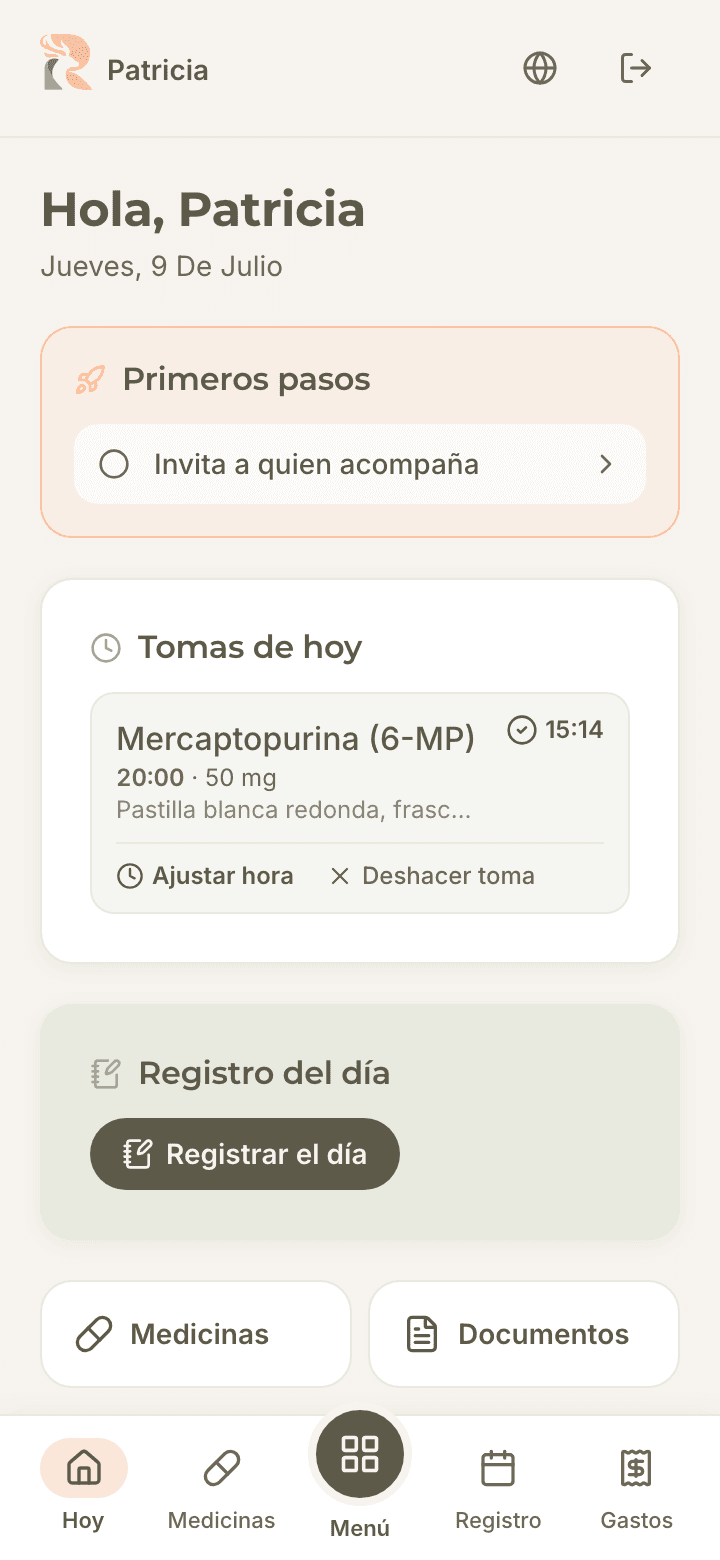
Medications
An organized medicine cabinet: each medication with its instructions, schedules and photos, exactly as the medical team prescribed.
Add a medication
- Go to Medications and tap add.
- Write the name and instructions exactly as the medical team gave them.
- Set the dose schedule.
- Optionally add a photo of the box or label to avoid mix-ups.
Reminders on your phone
Each medication can be sent to your calendar: you get an email with the event and its repetitions, and opening it adds them to your phone with alarms. Reminders ring even if you don't open Reno.
Good to know: Reno only organizes what the medical team prescribed: it doesn't calculate doses, suggest changes or replace any instruction.
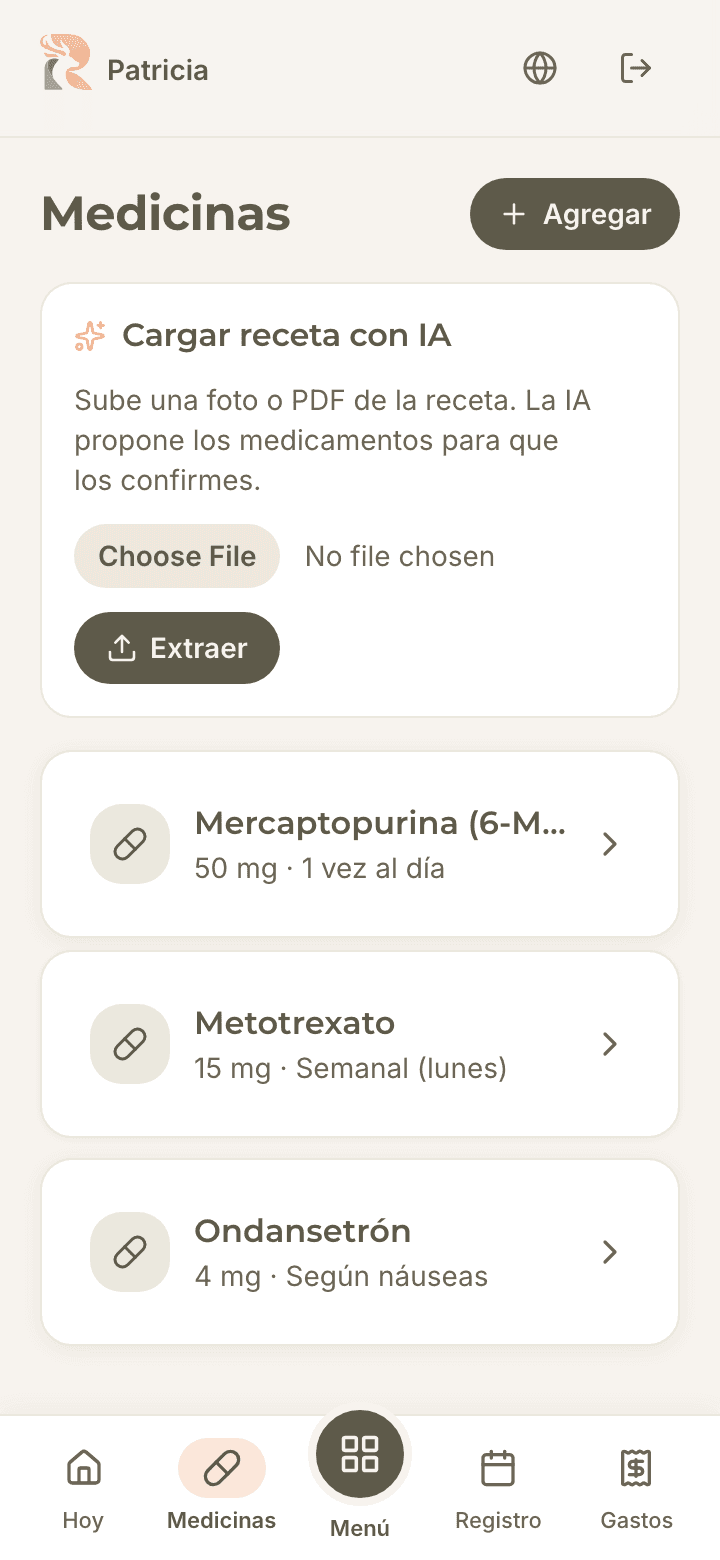
Daily log
A simple day-to-day journal that later helps answer the question every doctor asks: "since when?".
Record the day
- Open Daily log.
- Mark how they slept, ate and felt.
- Note any symptoms.
- Save: every entry adds to the treatment's timeline.
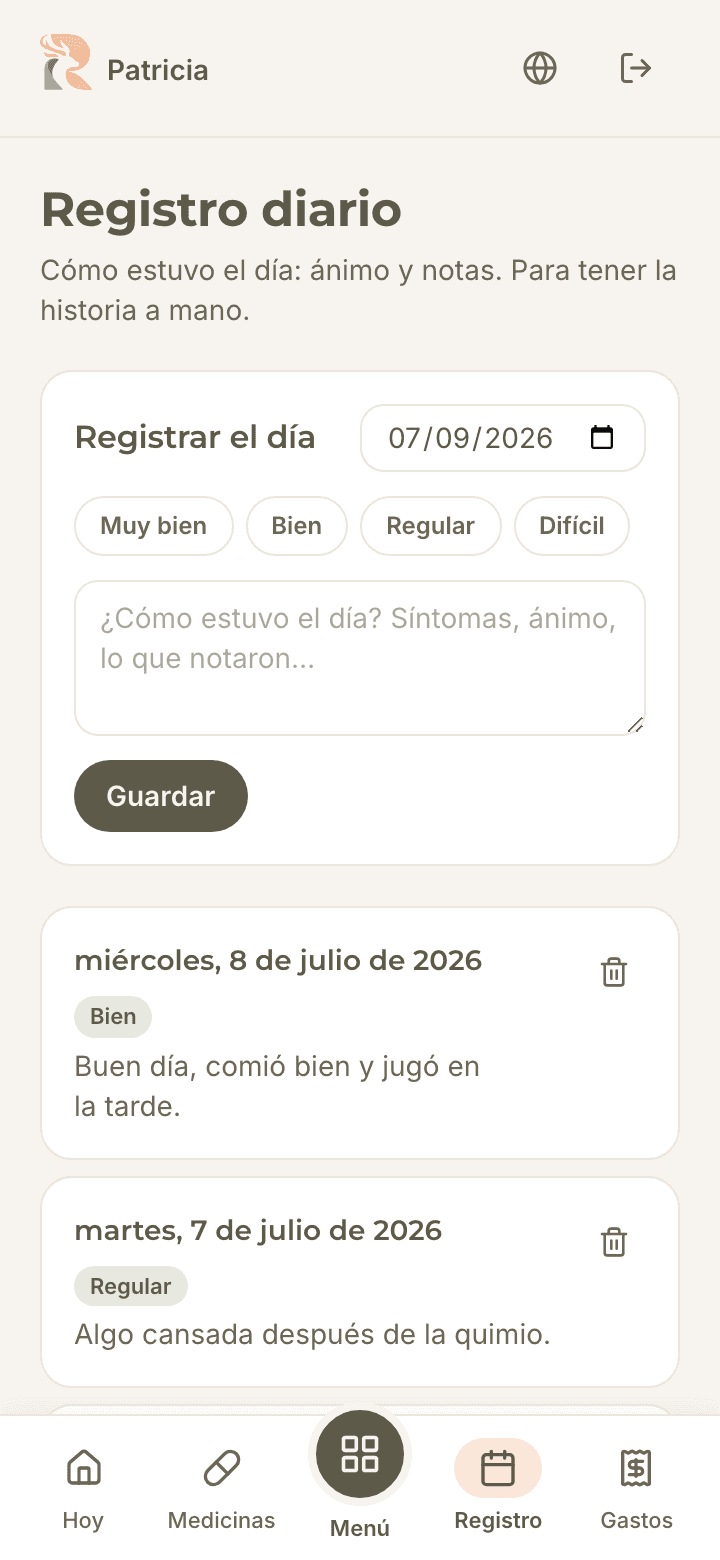
Agenda and appointments
Every appointment and check-up in one calendar shared by the caregivers.
Create an appointment
- Go to Agenda and tap add.
- Write the reason, place, date and time.
- The appointment shows up in Today when the day arrives, and is announced the day before.
Send it to your phone's calendar
Next to each upcoming appointment there's a calendar button: you get an email with the event and, when you open it, it lands in your phone's calendar with reminders one day and one hour before.
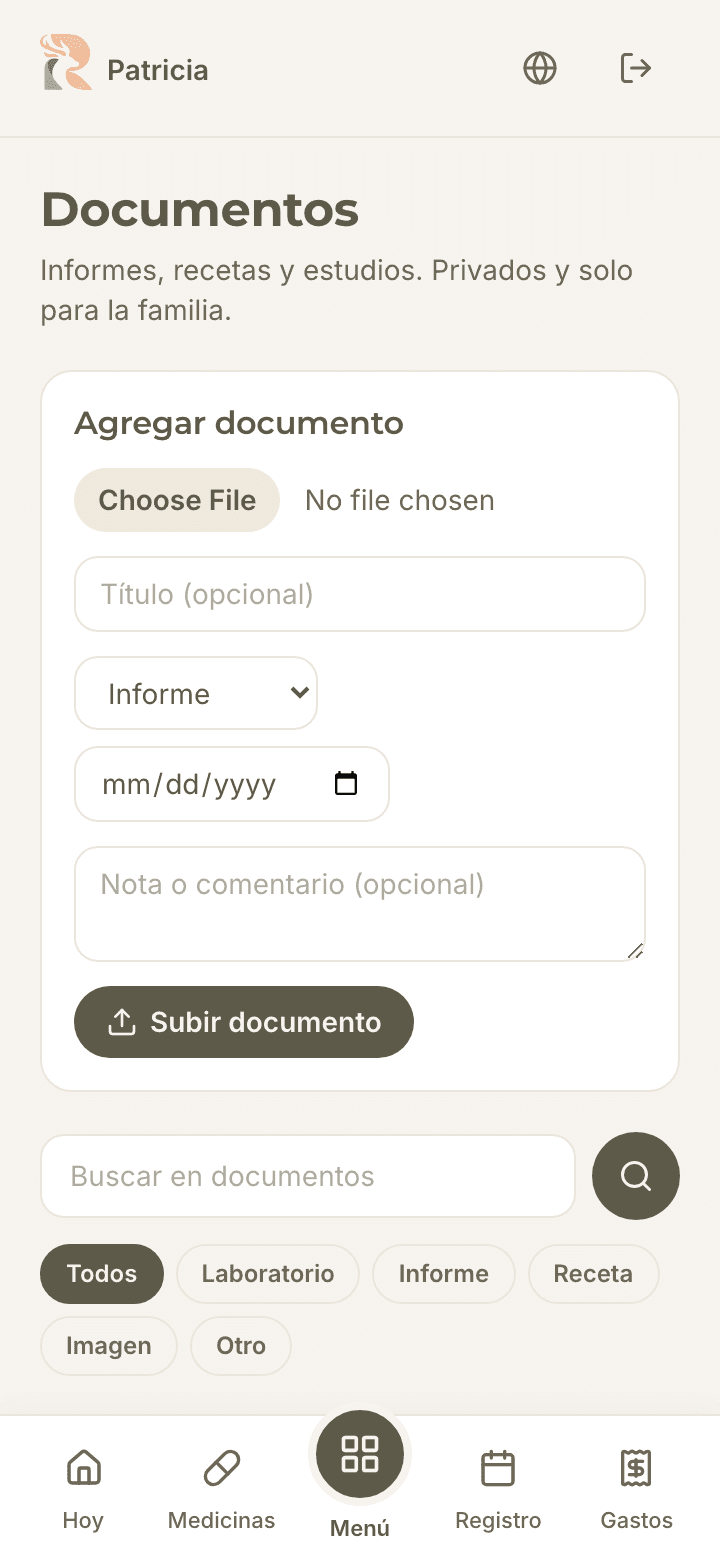
Documents
Prescriptions, reports, certificates and results: all in one private place, instead of folders, loose photos and chats.
Save a document
- Go to Documents and tap upload.
- Choose the file (PDF or photo) or take a photo on the spot.
- Give it a type and description so you can find it later.
Find it later
Use the search or filter by type. Documents can also be attached to an expense as a receipt.
Good to know: Documents are private: stored encrypted and visible only to your team. They are never published.
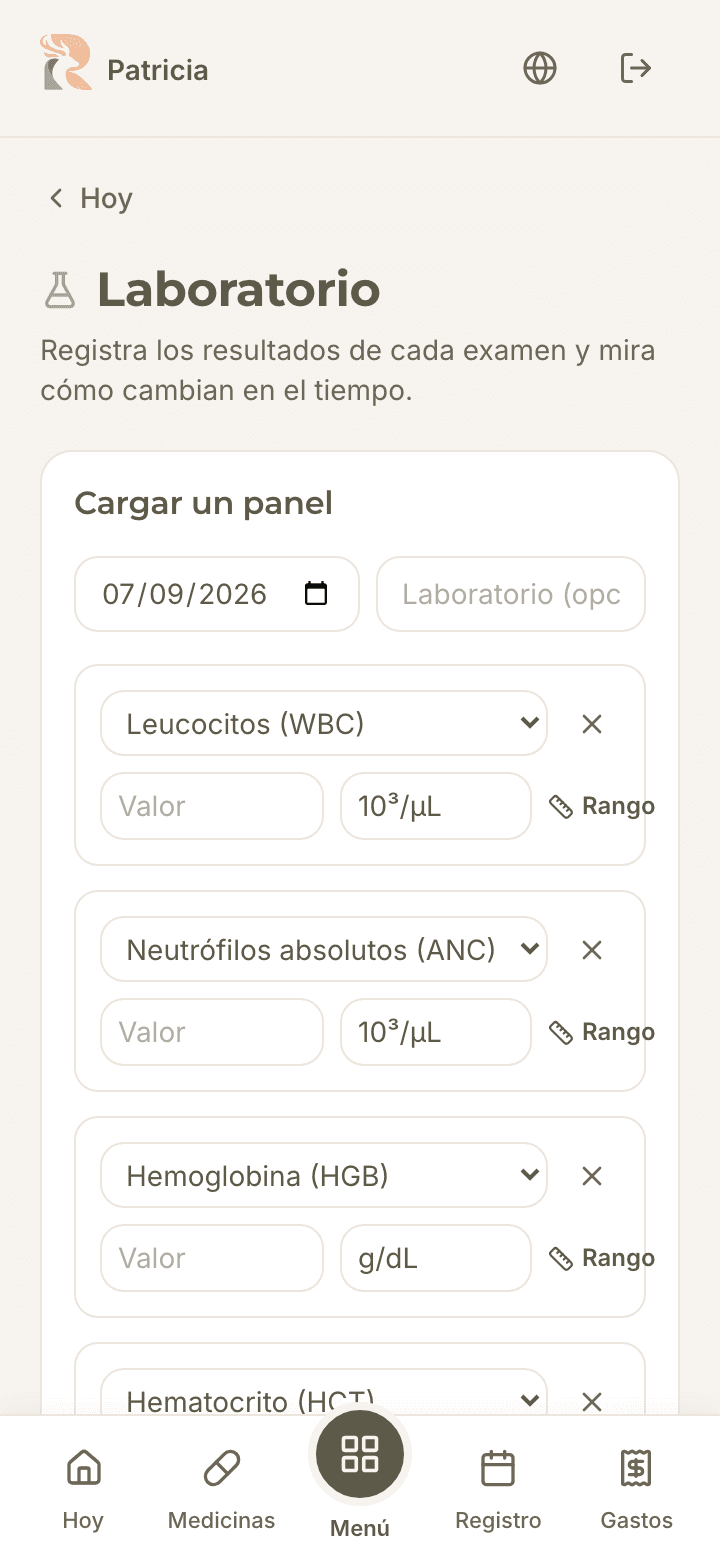
Lab results
Lab results, organized and charted to bring to the doctor.
Upload a report
- Go to Lab results and choose the report file (PDF or photo).
- Reno reads and extracts the values automatically and saves them as a draft.
- Check each value against the original report and confirm. Nothing becomes final without your confirmation.
See trends
Each value (hemoglobin, neutrophils, platelets…) is charted over time. You arrive at the appointment with the full history in your pocket.
Good to know: Reno shows the curves; it doesn't interpret them. Reading the results always belongs to the medical team.
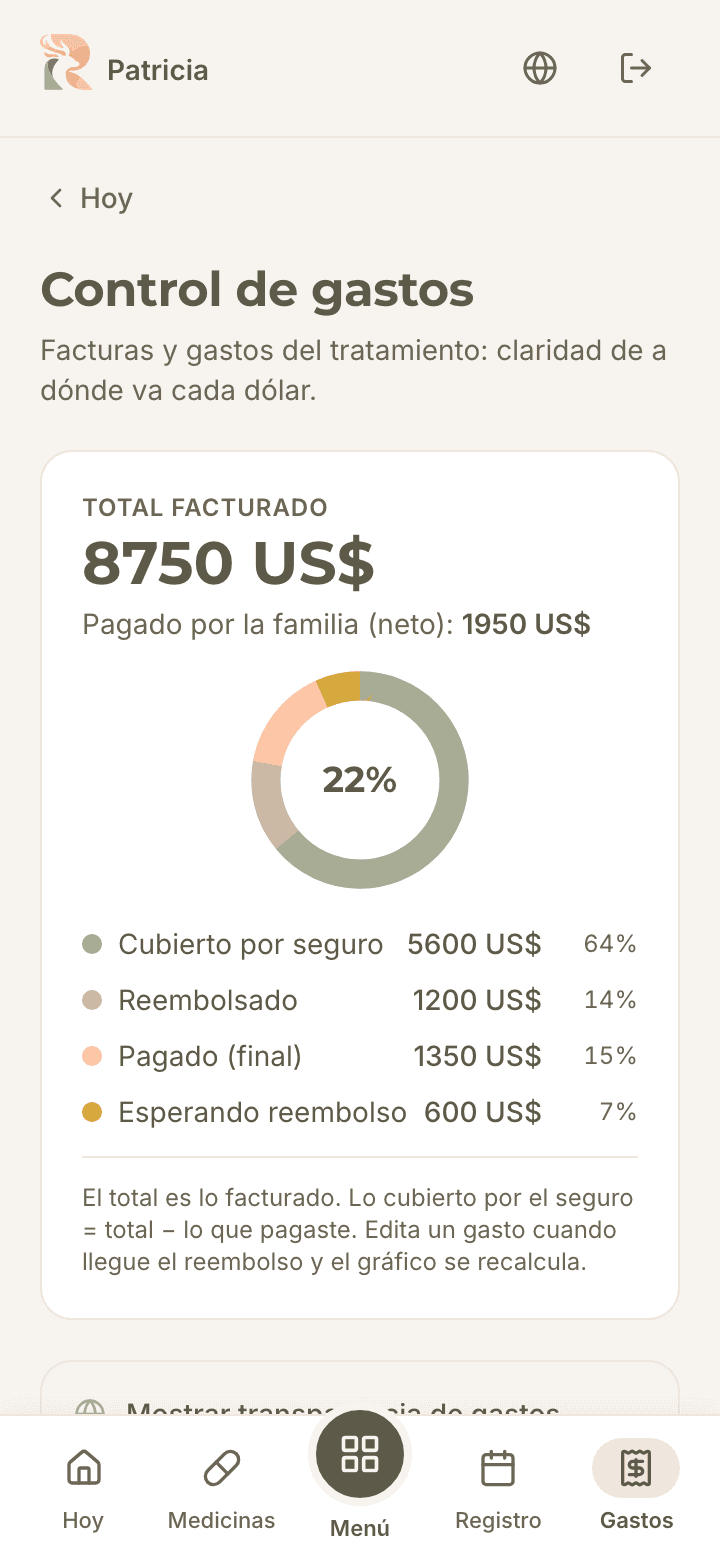
Expenses
The cost of treatment, documented and organized by category — and, if the family chooses, transparent to their support network.
Record an expense
- Go to Expenses and tap add.
- Choose the category, amount and date.
- If you have the receipt, attach it as a document.
- You can note how much was covered by help received.
Show them on the support page
If you turn on transparency, category totals appear on the public page. Supporters see where the help goes — and trust grows.
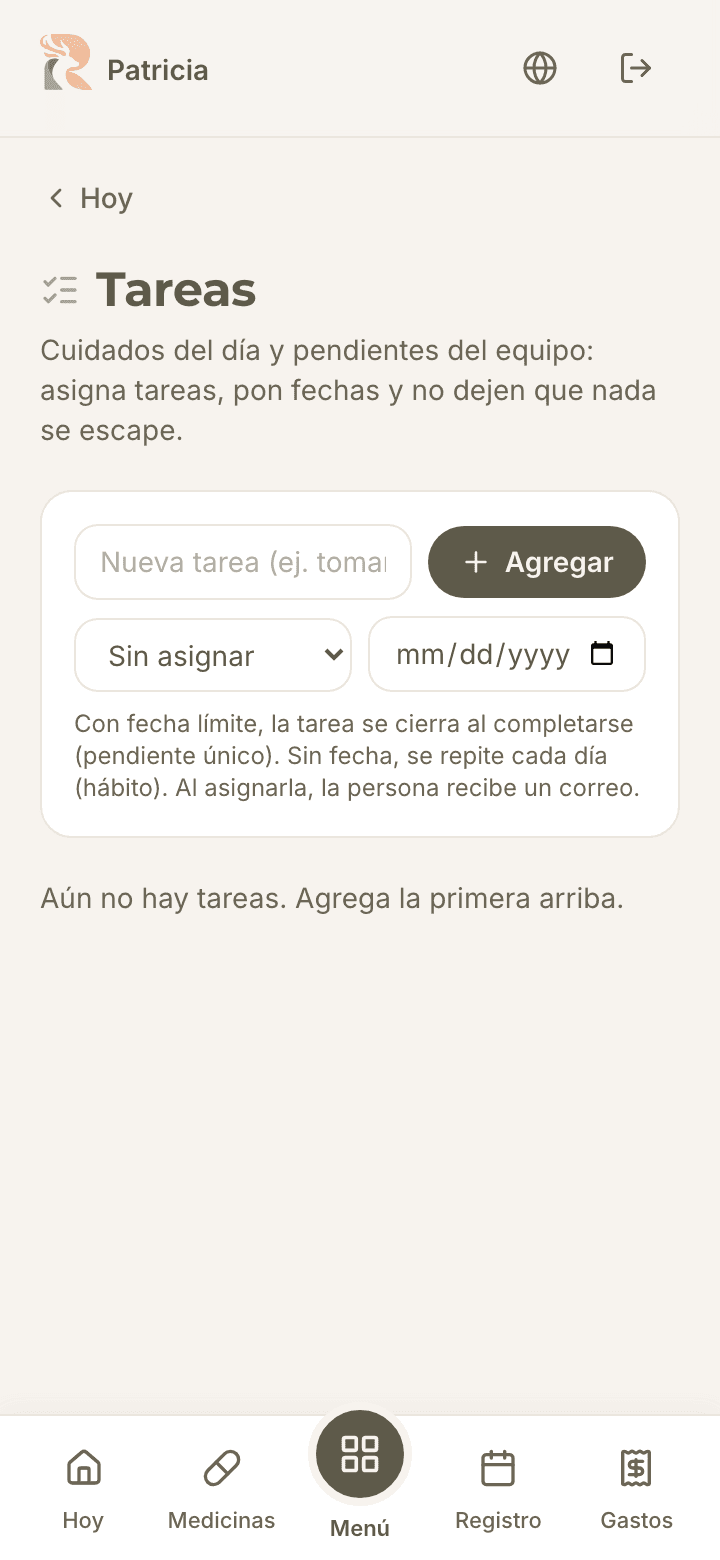
Tasks
The family's to-do list, shared among the people who can help: buy the medication, take papers somewhere, pick up a result.
Create and assign a task
- Go to Tasks and write the task.
- Assign it to someone on the team: they get an email notice.
- If it has a deadline, set it; if it passes, the task is marked overdue.
Complete and undo
Mark the task when it's done. If it was marked by mistake, it can be restored from the completed section.
The support page
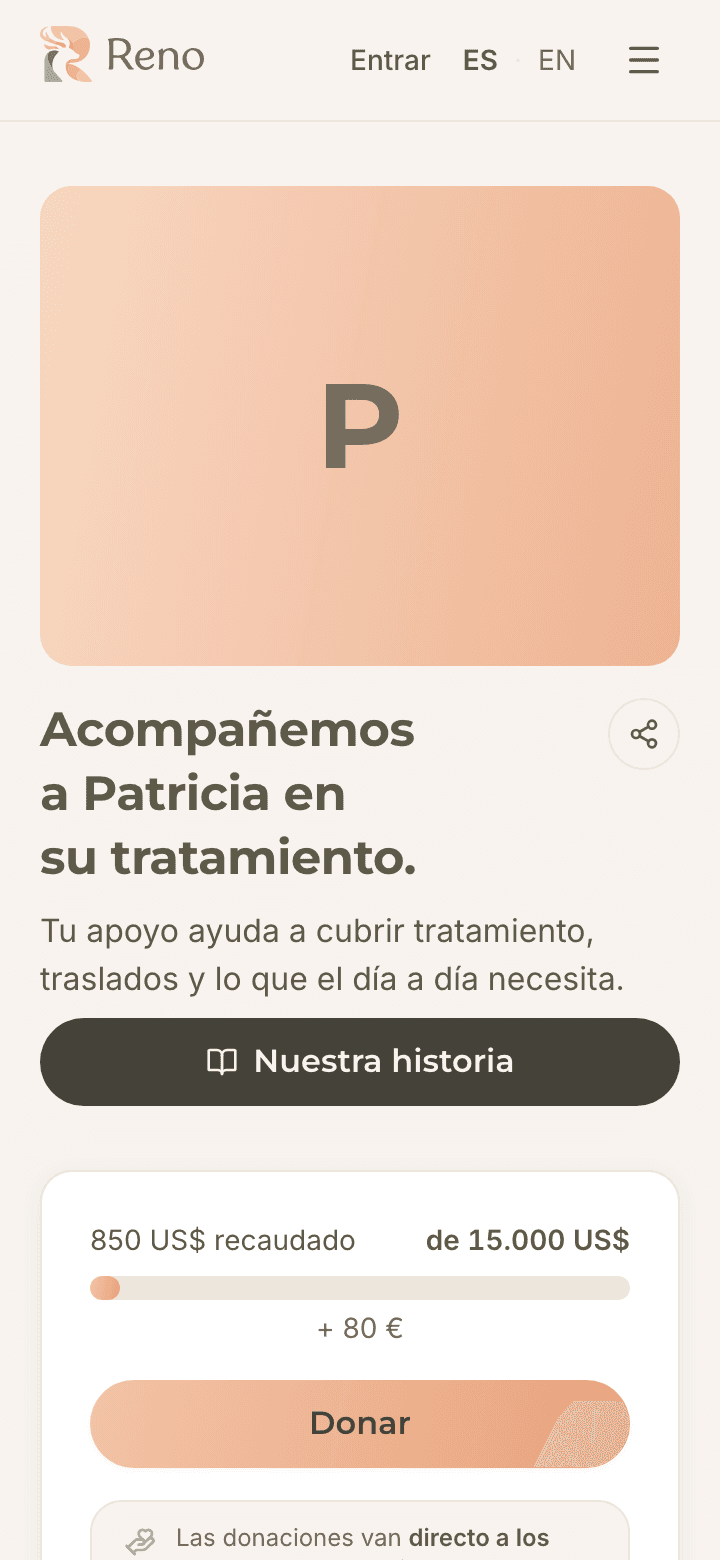
A public page to tell your story and coordinate your network's support. It's optional, and the family chooses its purpose: fundraise for treatment, share the day-to-day, or simply inform.
Build and publish it
- Complete the page texts (story, situation, why support) and upload at least one photo.
- When everything is ready, submit it for review.
- The Reno team reviews and publishes it. Until it's approved, the public sections appear locked.
Donation methods
Add your accounts and wallets with their instructions. Each method is verified by the Reno team before it shows. Money goes straight to your accounts: Reno never touches it and takes no commission.
Updates and messages
Publish updates to keep your network in the loop. Messages of encouragement people leave go through your approval before appearing on the wall.
Share the page
Share the direct link, download the QR code to print it, or generate the ready-made image for Instagram stories — all from the page itself.
Family and roles
Reno is shared: each person signs in with their own access and a role that defines what they can see and do.
Invite someone
- From the patient's profile, invite them by email.
- Choose the role: manage, care and record, or simply follow along.
- The invitation arrives by email. You can revoke any access at any time.
Good to know: Patient and friend roles see only non-clinical content: milestones and photos the family marks as shareable. They never see medications, documents or lab results.
Privacy and safety
Reno was born for sensitive health data and behaves accordingly: everything starts private, and publishing is always an explicit family decision.
What Reno protects for you
Everything clinical (medications, documents, lab results, daily log) is always private. Public content passes human review before going live. Anyone can report a suspicious page and the team reviews it. And you can unpublish your page or request deletion of your data at any time.
Good to know: Privacy questions? Write to hola@myreno.app or read the full commitments at myreno.app/en/trust.